FunClipper

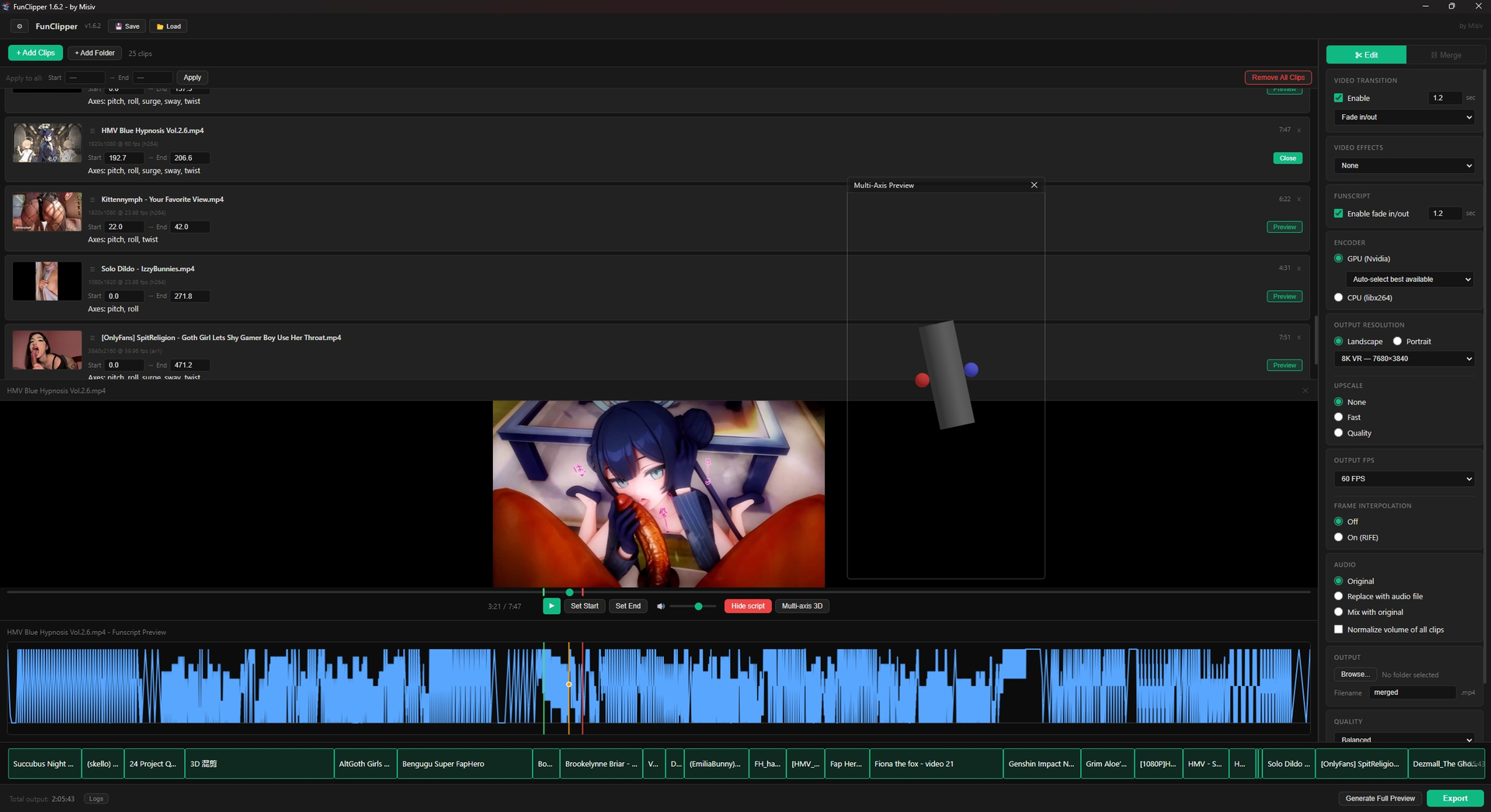
The videos and amazing scripts used here come from @SIDM from this post:
https://discuss.eroscripts.com/t/rinjo-18-mega-script-bundle-incooming-brace-and-or-bust-32-scripts-of-varying-lengths-over-3-hours-of-scripted-content/308452
What it does
- Add clips from anywhere on your drive (file picker, recursive folder import, or just drag & drop onto the window)
- Set start/end timestamps for each clip using the built-in preview player
- See resolution, FPS and codec for each clip directly in the list
- Reorder clips by dragging them up and down the list
- Apply the same start/end timestamps to all clips at once with the Apply to All bar
- Remove all clips at once with confirmation
- Merge everything into one
.mp4+.funscript - Trim and merge matching
.srtsubtitle files alongside the video - Save and load projects (
.funclipperfiles) so you can continue editing later - Optional iFrame copy for scripting tools like OpenFunScripter
- Built-in logs, cleaner error messages and export-complete notifications when something goes wrong or finishes
Funscripts are detected automatically - just put them in the same folder as the video with the same filename (video.mp4 + video.funscript) and the app handles the rest. Timing math, offset calculation, fade transitions etc
Multi-axis funscripts (.pitch, .roll, .surge, .sway, .twist, .vib) are also detected and merged correctly alongside the main script
SRT subtitles are also detected automatically when they use the same filename as the video (video.mp4 + video.srt). They are trimmed, re-timed and saved as a matching .srt file next to the final video
Two modes: Edit / Merge
- Edit mode - re-encodes everything to your target resolution, FPS and codec. Applies fade transitions. Works on any clips no matter how mixed
- Merge mode - uses lossless
-c copywhen all your clips have matching video and audio format. No re-encoding, no quality loss, instant. A live compatibility indicator tells you whether your current clips qualify
Preview player
Click  Preview on any clip to open it in the built-in player. Use the seekbar to find your cut points, then hit Set Start / Set End
Keyboard shortcuts:
Space- play/pause← →- seek by 1 second[- set start at current position]- set end at current positionDelete- remove active clipTab- cycle through clipsCtrl+E- export / mergeCtrl+P- generate previewCtrl+S- save project
Green marker = start, red marker = end, visible directly on the seekbar
If the clip has a funscript, the player can also show a waveform preview of the script. If it has multi-axis scripts, you can open the separate 3D preview from the same player controls
Matching .srt subtitles are shown as a simple overlay in the player.
Generate Full Preview
Renders a fast, lower-quality preview of the final output - video, merged funscript, merged subtitles and multi-axis preview data - so you can verify everything before the actual export. Uses GPU encoding when available. Includes merged subtitles when your clips have matching .srt files.
Multi-Axis 3D Preview
When a clip has axis scripts, a separate transparent 3D window shows a live stroker animated in sync with playback. Available both in the per-clip preview and Generate Full Preview. The window stays on top of other windows, and remembers its size and position between sessions
Upscale & Frame Interpolation
Optional output upscaling and framerate boosting:
- Upscale - Fast (GPU, quick) or Quality (AI, sharper but slow). Quality offers separate models for Real-life / 3D and Anime / 2D
- Frame Interpolation - generates intermediate frames to raise output framerate (e.g. 30 → 60 fps). Powered by RIFE
AI models are bundled, no extra download. Quality features need a Vulkan-capable GPU - the app auto-detects and disables them otherwise
Best used for small bumps (e.g. 720p → 1080p). For top-quality upscaling use a dedicated tool like Topaz Video AI
Settings
| Option | What it does |
|---|---|
| Fade in/out | Each clip fades smoothly at the edges. Default 1.2s. Applies to video and funscript independently |
| Video transitions | Fade, Crossfade, Wipe, Slide, Smooth wipe, Wind, Cover, Reveal, Pixelize, Heavy blur, Radial, Circle crop and Rectangle crop |
| Video effects | Black & White, Sepia, Saturation, Contrast and Vignette |
| Encoder | GPU (Nvidia, AMD, Intel) or CPU. Auto-select or pick a specific one. Only encoders that can actually start are shown, with CPU fallback if GPU encoding fails |
| Resolution | Presets for VR, 16:9 and 2:1 from 1080p to 8K. Portrait/Landscape toggle. Custom option too |
| FPS | 24 / 30 / 60 / 120 FPS. Mixed FPS clips all get normalized to your target |
| Quality | Fast / Balanced / Quality |
| Upscale | None / Fast / Quality AI upscale |
| Frame interpolation | Optional FPS boost powered by RIFE |
| Audio | Keep original, replace with an MP3, or mix MP3 with original audio + volume slider |
| Normalize | Evens out volume differences between clips |
| Make iFrame copy | Creates iframes_<output>.mp4, where every frame is a keyframe and height is capped at 1080p |
In the gear icon (top of the header) you’ll also find a sound effects toggle and 6 accent color themes
Larger clips scale down, smaller ones get centered with black bars
Output is encoded with -pix_fmt yuv420p, -tag:v hvc1 and -movflags +faststart so it SHOULD play correctly in HereSphere and other VR players. If H.264 is selected for a resolution above 4K, FunClipper switches to HEVC automatically
Before export or Generate Full Preview, FunClipper checks disk space, output conflicts, missing files, unreadable clips, invalid clip ranges and dangerous output names. Export and preview ask for confirmation before starting, and existing output files are shown in a confirmation dialog before they are overwritten
Logs are kept for 30 days. Saved error logs redact personal Windows folder paths before they are written
Audio in preview
If you’re using Replace or Mix mode, the preview player syncs the music to the correct timeline position for that clip so clip 3 will play the music starting from where clips 1+2 would have ended. What you hear in preview is what the final video sounds like
Silent clips and mixed audio layouts are handled automatically during export
Timeline
There’s a visual timeline at the bottom showing all clips proportionally. If you have a music track loaded, the audio length shows as a grey background so you can see at a glance if it covers all your clips. Click any block to open that clip’s preview
For longer projects, time displays switch to H:MM:SS automatically
Download link → 344.38 MB folder on MEGA
VirusTotal scan results → VirusTotal
Built with Electron + ffmpeg
If needed, I will add more features or improve what is already there. I am open to suggestions. Let me know if you run into any issues :3

Update details
1.1.0
UPDATE 1.1.0
-
Script preview
Added script preview under each video preview -
Generate Full Preview
FunClipper now renders a fast, lower-quality preview of the final output, including both video and script, so you can verify everything before the final render
1.2.0
UPDATE 1.2.0
-
Separate Video & Script Fade Controls
Now you can apply fade independently to the video and the script -
Multi-GPU Encoder Support
Added hevc_amf, h264_amf (AMD), hevc_qsv, h264_qsv (Intel) -
Project Save/Load System
Save your project configuration (clips, timings, settings) to a .funclipper file, load saved projects to continue editing later -
Disk Space Check Before Export
Estimates output file size based on clip duration and quality settings. Checks available free space on target drive before starting export. Warns if insufficient space and prevents failed exports -
Video Metadata Display
Shows resolution, FPS, and codec for each video in the video list -
Minor Changes & Improvements
Fixed a few bugs and added a few more to fix later
1.2.1
UPDATE 1.2.1
-
Enhanced GPU Encoder Support
Manual dropdown to select specific encoder (NVIDIA NVENC, AMD AMF, Intel QSV) or “Auto-select best available”. Fixed vendor-specific parameters for AMD/Intel GPUs (fixes “Could not open encoder” errors) -
Error Reporting
Save error logs with system info to help debug issues -
Bug Fixes
Fixed funscript fade calculation error (when clip duration is shorter than fade duration). Fixed XSS vulnerability in clip card filenames. Fixed memory leak in funscript cache
1.3.0
UPDATE 1.3.0
-
Merge Mode
Added a new “Merge” mode alongside the existing “Edit” mode. Switch between them using the buttons at the top of the settings panel. Merge mode is merging clips together losslessly using-c copy, no re-encoding, no quality loss, instant. Works only when all clips have matching codec, resolution and FPS. A live compatibility indicator shows whether your clips can be merged losslessly, with details on what differs if they can’t -
Multi-Axis Funscript Support
Now detects and processes multi-axis funscripts. If your clips have.pitch.funscript,.roll.funscript,.surge.funscript,.sway.funscript,.twist.funscriptfiles alongside the main script, they will all be trimmed and merged correctly
Multi-axis script preview is not available yet. I need to figure out how to implement it without making a mess in the UI -
Apply to All Clips
New bar above the clip list lets you set Start and End time for all clips at once. If any clips are shorter than the entered End time, they get trimmed to their maximum duration and you get a notification listing which ones were affected -
Script Preview Moved to Player
Removed the “Script” button from each clip card. Instead, a “Show script” / “Hide script” button now appears in the player bar next to the volume slider. Switching preview to a different clip while the script is visible automatically refreshes the script for the new clip -
Recursive Folder Import
“Add Folder” now scans all subfolders recursively. Files are sorted alphabetically by full path -
H.264 + High Resolution Warning
When H.264 is selected as GPU encoder and a resolution above 4K is chosen, the app automatically switches to HEVC and shows a notification explaining why -
Preview Uses GPU
Generate Full Preview now uses GPU encoding if available instead of always using CPU -
Bug Fixes
Fixed thumbnails - now appear as soon as they’re ready instead of waiting for the next clip to be added
Fixed drag & drop not working
Fixed crash when loading a project with an unrecognized encoder value
Fixed crash when loading a corrupted/incomplete project file
Fixed funscript read crashing on malformed files
Fixed disk space estimate always using “balanced” quality regardless of selected setting
Fixed GPU encoder warning toast appearing once per clip instead of once per export
Fixed video files with#in the filename not loading in the player
Fixed disk space check failing on Windows 11 24H2
1.3.1
UPDATE 1.3.1
Bug Fixes
-
Separate Video & Script Fade Controls
Fixed - now you can apply fade independently to the video and the script -
Video Playback with Special Characters
Fixed a bug where video files with#in their filename would fail to load in the preview player -
Audio Sync in Preview
Fixed audio desync in the preview player. Audio now correctly follows the current video position within a clip instead of always starting from the beginning of the audio track -
Export Button Locked After Mode Switch
Fixed a bug where switching from Merge mode (with incompatible clips) back to Edit mode left the Export button permanently grayed out -
Cancel Button Race Condition
Fixed a race condition where clicking Cancel would briefly re-enable the Export button before the main process confirmed the task was stopped -
Funscript Errors Now Logged
Parsing errors for funscript files are no longer silently swallowed. Invalid or corrupted funscript files will now produce a warning in the log -
Audio Path Validation
Added validation for the audio path before starting export. A missing or invalid audio file now produces a proper error instead of crashing the FFmpeg process -
Windows Reserved Filenames
Output filenames that match Windows reserved names (CON, NUL, COM1, etc.) are now automatically prefixed to prevent export failure
Performance & Stability
-
Faster Clip Loading
Loading clips (both when adding files and when opening a saved project) is now done in parallel instead of one-by-one. Large clip lists load significantly faster -
Smoother Script Preview
The script waveform preview no longer recalculates canvas dimensions on every animation frame. Canvas metrics are now cached and only refreshed on window resize -
Funscript Cache Limit
The funscript data cache is now capped at 50 entries to prevent unbounded memory growth when working with many files across a long session -
Temp Folder Cleanup on Startup
Leftover temporary folders from previous crashed or interrupted sessions are now automatically cleaned up when the app starts -
Merge Disk Space Estimate Fix
Fixed an incorrect disk space calculation for Merge mode. The estimate now correctly accounts for temporary segment files and the final output existing on disk at the same time
Merge Mode
- Merge Mode Compatibility
Merge Mode compatibility has been improved. It will now check more accurately whether video files are identical and suitable for merging with-c copyto avoid faulty exports + better error logs
1.3.2
UPDATE 1.3.2
Bug Fixes
-
Portrait Mode Now Works with Custom Resolution
Fixed a bug where selecting Portrait orientation with a custom resolution didn’t swap width and height. Portrait mode now correctly applies the swap to custom values as well as presets -
Mix Mode Falls Back When Source Has No Audio
Fixed a crash when using Mix audio mode with a video file that has no audio track. Mix mode now automatically falls back to Replace mode if the source video is silent, with a notification explaining the change -
Empty Funscript Output Prevented
Fixed an edge case where funscript extraction could produce an empty merged result, causing a corrupted .funscript file. Empty funscripts are now skipped with a log warning -
Load Project Guard
Fixed being able to load a project file while an export, preview, or merge was already running, which could cause state corruption -
Task Cancellation Speed
Cancelling an export, preview, or merge now stops immediately between processing stages, instead of waiting for the current FFmpeg operation to finish
1.4.0
UPDATE 1.4.0
New Features
-
Multi-Axis 3D Preview
Real-time 3D preview of multi-axis funscripts. When a clip has axis scripts (.pitch / .roll / .twist / .sway / .surge), a “Multi-axis 3D” button appears in the player and opens a separate, resizable window showing a 3D stroker. Available both in the main player and in Generate Full Preview. The 3D window always stays on top of other app windows, and remembers its size and position between sessions. -
Remove All Clips Button
Added a “Remove All Clips” button on the right side of the Apply to All bar. Clicking it opens a confirmation dialog before removing all clips -
Comprehensive Logging
The app now keeps a log of everything that happens during exports, previews and merges, plus any errors. Useful when something goes wrong and you want to report a bug. Logs are kept for 30 days -
Time Format Now Shows Hours
All time displays (clip duration, player, total output, timeline) now automatically switch to H:MM:SS format when duration exceeds 59 minutes -
Export Complete Notification
When an export finishes, a popup dialog appears -
Sound Effects
The app now plays sound effects for key events: confirmation dialogs, export completion, and errors. All sounds are optional and they can be toggled off in Settings -
Settings Panel
Added a Settings button in the header. Contains a Sounds on/off toggle and a Theme picker with 6 accent color presets
Bug Fixes
-
Funscript Drifting Out of Sync on Multi-Clip Output
Fixed a critical bug where the merged funscript would drift further out of sync the longer your output video was -
Export / Merge Failing When Output Folder Missing
Fixed a bug where Export or Merge would fail with an “no such file or directory” error if the chosen output folder was deleted, renamed, or never created -
Generate Full Preview Player Too Small
The video in the preview window starts bigger and now grows together with the window when you resize it, instead of staying small while only the script panel got taller -
Visual Artifacts at Clip Boundaries
Fixed a class of glitches (blocky pixels, brief stuttering, tiny speed-ups) right where one clip ended and the next started, especially when source clips had different frame rates. Most players (like VLC) hid the problem, but stricter players like OFS / ScriptPlayer would show it clearly. Thanks @Slibowitz
-
Audio Hanging Mid-Playback on Mixed Audio
Fixed a bug where Generate Full Preview would freeze partway through (and exports could glitch) when source clips had different audio formats - for example one stereo and one 5.1. If every clip has the same audio layout it’s preserved, otherwise everything is converted to stereo -
Generate Full Preview Failing on Intel QSV
Fixed Generate Full Preview crashing with an “Error -22” when the Intel QSV encoder was selected -
Replace Audio Cutting Video to Audio Length
Fixed a bug where using “Replace Audio” would produce an output as long as the audio file instead of the video. Video now keeps its full length, audio shorter than video is followed by silence -
Portrait Mode Resolution Labels Not Updating
Fixed a bug where switching to Portrait orientation left the resolution dropdown showing Landscape dimensions. Labels now update dynamically to reflect the correct swapped resolution -
Export Crashing on Clips With No Audio
Fixed a bug where exports would fail with a “no audio stream” error if any of the clips were silent (no audio track). Such clips are now correctly handled and exported without audio -
Empty Axis Funscript Files Written
Fixed an edge case where exporting could produce empty.pitch.funscript/.roll.funscriptetc. when your clip ranges happened to trim out all axis actions. Empty axis files are now simply skipped, same as already worked for the main funscript -
Project Load Crash on Corrupted File
Fixed a crash when loading a project file with a missing or invalid resolution value. The app now falls back to 3840x2160 in that case instead of crashing
1.5.0
UPDATE 1.5.0
New Features
-
Upscale
Upscale your videos to higher resolution. Two modes available. Fast uses the FFmpeg and is very quick, good for casual upscale. Quality is AI-powered, much sharper but slower. When you pick Quality, choose between “Real-life / 3D” for live action and CGI footage, or “Anime / 2D” for cartoons and anime. Needs a Vulkan-capable GPU - the app auto-detects and disables the option if not supported -
Frame Interpolation
Generate intermediate frames to raise output framerate (e.g. 30 fps source → 60 fps output). Toggle under Output FPS. Powered by RIFE -
AI Models Bundled
All AI models are included inside the app - no extra downloads, no separate setup. Just install and use
Known Limits
- Quality upscale (AI) is slow. Expect roughly 30 seconds per 1 second of 720p->4K footage with the Real-life model. The Anime model is about 3x faster
- Upscale here is best for small bumps (e.g. 720p → 1080p). For top-quality results, use a dedicated tool like Topaz Video AI
My tests on RTX 3090:
- Upscale Quality real + Frame Interpolation - 720p30fps → 4k60fps - 19m49s
- Upscale Quality anime + Frame Interpolation - 720p30fps → 4k60fps - 06m51s
- Upscale Fast + Frame Interpolation - 720p30fps → 4k60fps - 0m33s
- Frame Interpolation only - 720p30fps → 720p60fps - 0m21s
1.5.1
UPDATE 1.5.1
Bug Fixes
-
Preview Window Now Updates After Regenerating
Fixed a bug where the preview window would keep showing the old video after you changed your clips and generated a new preview. Now it refreshes automatically without having to close and reopen it -
Existing .funscript Files No Longer Overwritten Silently
Fixed export and merge not warning you when a.funscriptfile (or axis scripts like.pitch.funscript) already existed in the output folder. The app now checks all output files, not just the.mp4, before overwriting -
Merge Compatibility Check Now Looks at Audio Too
Fixed merge mode marking clips as “compatible” when they had matching video but different audio formats (e.g. one clip AAC 44.1kHz, another AAC 48kHz). Compatibility now checks audio codec, sample rate, and channel layout in addition to video codec, resolution, and FPS -
Two Copies of FunClipper Could Run at Once
Fixed that launching the app twice would let both copies run simultaneously, which could corrupt temporary files and active exports. Now only one instance runs at a time - opening the app again just brings the existing window to front -
Long Quality Export Without Warning
Added a confirmation popup before very large Quality exports. When AI processing would create more than ~20 GB of temporary frame data, the app warns first since these jobs can take 30+ minutes even on fast hardware -
Error Log Files Never Deleted
Fixed error log files (error-*.txt) piling up forever in the logs folder. They’re now cleaned up along with regular logs -
Error Logs Contained Personal Folder Paths
Fixed saved error logs including your Windows username and folder paths (likeC:\Users\YourName\...). These are now automatically replaced with[REDACTED]before saving -
Potential Corrupted Save Files on Crash
Fixed a small risk of corrupted project files or window settings if the app crashed exactly while saving. Saves are now written to a temp file first and safely moved into place -
Crash With Rare Corrupted Video Metadata
Fixed a possible crash during export when a video file had unusual frame rate metadata (e.g. reporting “0/1” frames per second)
Stability
-
Export Processes Properly Closed on App Exit
Fixed AI processing tasks (RIFE, Real-ESRGAN) sometimes staying alive in the background after closing FunClipper mid-export. All background processes are now forcefully terminated when the app closes -
Faster Project Loading
Loading a saved project with many clips is now faster. Clip probes are limited to running a few at a time instead of all at once
1.5.2
UPDATE 1.5.2
Stability & Safety
-
Better Error Log Privacy
Improved privacy cleanup in saved error logs. Windows user folder paths are now removed more reliably, including paths saved in technical/escaped formats -
Improved Funscript Error Handling
Invalid or corrupted funscript files now show a clearer error instead of silently behaving like an empty script
Quality Export Improvements
-
More Realistic Quality Temp Space Warning
The Quality export warning now estimates temporary disk usage based on the actual staged export process instead of an overly large theoretical maximum. The warning should be much closer to real temporary folder usage and less scary for normal exports -
Clearer Quality Disk Message
Quality export warnings now explain that temporary frame data is removed after export and include a safety margin in the estimate -
Background GPU / Vulkan / AI Tool Detection
FunClipper now opens first and checks GPU encoders, Vulkan, RIFE and Real-ESRGAN availability in the background. This should make startup feel more responsive, especially on systems where hardware detection takes a moment
UI / UX
- Consistent Warning Style
Large export warnings, low disk warnings, overwrite confirmations etc now look like part of FunClipper instead of system popups
1.6.0
UPDATE 1.6.0
New Features
-
Make iFrame Copy
New option in the “Other” section. After your main export finishes, FunClipper makes a sibling copy where every frame is a keyframe (all-intra) and the height is capped at 1080p. Designed for scripting tools like OpenFunScripter. File is namediframes_<original>.mp4and saved next to the regular output -
More Video Transitions
Added a bunch of new transition styles next to the original Fade in/out
Crossfade, Wipe, Slide, Smooth wipe, Wind, Cover, Reveal, Pixelize, Heavy blur, Radial (clock wipe), Circle crop, Rectangle crop. Wipe, Slide, Smooth wipe, Wind, Cover and Reveal
Also let you pick the direction (Left / Right / Up / Down). Funscripts stay in sync with the new transitions automatically -
Video Effects
New global filter section under Video Transition.
Black & White, Sepia, Saturation, Contrast, Vignette.
Saturation and Contrast also have a 0.0-2.0 slider for fine control -
Keyboard Shortcuts
Added:
Ctrl+E (Export)
Ctrl+P (Generate Preview)
Ctrl+S (Save Project)
Delete (Remove active clip)
Tab (cycle through clips) -
Confirmation Before Export / Preview
Export and Generate Preview now ask for a quick confirmation before starting
Bug Fixes
- Player Shortcuts
Fixed Space, [, ], and Arrow keys not working in the player after clicking the seekbar, and not working at all on the first clip of a session. Arrow keys now seek by 1 second
1.6.1
UPDATE 1.6.1
Bug Fixes & Safety
-
Safer Preview Validation
Generate Full Preview now uses the same project validation as Export, so invalid clip ranges are caught before FFmpeg starts -
Short Clip Transition Guard
Video transitions now fail early with a clear message if the transition duration is longer than one of the clips -
Unreadable Files Rejected Earlier
Broken, empty, or unreadable source files are now blocked before export/preview/merge instead of failing later with confusing FFmpeg errors -
Output Overwrite Protection
Export and Merge now block output filenames that would overwrite one of the source clips -
Funscript Warning Summary
If a funscript is skipped during export or merge, FunClipper now shows a warning summary instead of only writing it to logs -
Clearer Error Messages
Common FFmpeg failures such as corrupt video files, missing files, encoder startup failure, permission issues, and low disk space now show cleaner messages -
Project Loading Guard
Export and Generate Preview now show a clear warning if triggered while a project is still loading -
Drag & Drop Feedback
Dragging unsupported files onto the app now shows a warning instead of silently ignoring them -
Real GPU Encoder Detection
GPU encoder detection now runs a real one-frame encode test for NVENC, AMF, and QSV instead of only checking whether FFmpeg lists the encoder. The dropdown now shows only encoders that actually can start on the user’s PC -
Better GPU Auto-Select
Auto-select now prefers NVIDIA HEVC when available, but avoids automatically preferring HEVC on AMD and Intel where H.264 is usually safer -
GPU Encoder Fallback
If a GPU encoder still fails during export, Quality encode, or transition pass, FunClipper retries that stage with CPU encoding and shows a warning instead of failing immediately
1.6.2
UPDATE 1.6.2
New Features
-
SRT Subtitle Support
FunClipper now detects.srtsubtitle files placed next to your videos. When you export or merge clips, matching subtitles are trimmed, re-timed, merged, and saved next to the output video asoutput-name.srt, so players can load them automatically -
Subtitle Preview
Subtitles now appear as a simple overlay in the built-in clip player and in Generate Full Preview. Full Preview shows the already merged subtitle timing, so you can quickly check whether the final result lines up -
Vibe / Vib Funscript Support
Added support for vibration funscript files. FunClipper now detects.vib.funscript,.vib1.funscript,.vib2.funscript,.vibe.funscript,.vibe1.funscript, and.vibe2.funscriptfiles next to your clips and merges them with the output. Different input names are normalized on export:vib,vib1,vibe, andvibe1are merged intooutput-name.Vibe1.funscript;vib2andvibe2are merged intooutput-name.Vibe2.funscript
1.6.3
UPDATE 1.6.3
Merge Mode
-
Safer Compatibility Check
Merge Mode now checks videos more carefully before allowing a lossless merge. Some videos can look identical in resolution, FPS and codec, but still be packaged differently inside. FunClipper now detects more of those cases before creating a broken or hard-to-seek output -
MKV Lossless Merge Fallback
If clips are not safe to merge into MP4 but can still be merged losslessly, FunClipper now switches the Merge output to.mkvand shows a clear warning. This keeps Merge lossless, but avoids problematic MP4 files that may freeze, show black video, or seek badly in some players -
Clearer Merge Status
Merge compatibility now has clearer states: clips are compatible for MP4 lossless merge, compatible only for MKV lossless merge, or not compatible for lossless Merge -
Merge Complete Notification
Merge now shows the same completion popup and sound as Export when the job finishes
1.6.4
UPDATE 1.6.4
Transitions / Audio
-
Better Crossfade Timeline Sync
Crossfade-style transitions now line up better in the editor timeline and with external audio preview. When clips overlap during a transition, FunClipper now uses the overlapped output timing instead of treating clips as simple back-to-back cuts -
More Reliable Crossfade Audio
Exports with crossfade transitions are now safer when some clips have audio and some clips are silent. FunClipper fills missing audio only for the transition pass, so the final video can keep audio instead of failing or losing sync -
Merge Mode Ignores Edit Transitions
Merge mode now fully ignores hidden Edit-mode transition settings. This prevents an old transition choice from affecting Merge preview or validation
Quality / AI Modes
- Safer Quality Fallback
If AI interpolation or AI upscale is unavailable, FunClipper now falls back to the closest available mode before export starts and shows a warning. This avoids confusing Quality-mode disk warnings or export behavior when the required AI tools are missing
Paths / Sidecars
- Better Long Path Handling
Long Windows paths are now handled more consistently for subtitle files, Vibe/Vib funscripts, and output folders
UI / UX
-
Clearer Start Confirmation
Preview, Export and Merge confirmations now show a short summary of the selected settings before the job starts, including clip count, duration, video behavior, audio mode, transitions etc -
Persistent Warning Summary
Warnings from the last export, preview or merge are now kept in a small footer indicator. You can open it after the toast disappears to review what FunClipper warned about -
Clearer Task Start Feedback
When a task starts, the progress area now immediately shows that FunClipper is preparing the preview, export or merge instead of staying blank until the first processing update


