Mystic Knight Maya v0.8.3 - Intiface Haptics Bridge

Mystic Knight Maya v0.8.3 - Intiface Haptics Bridge

First public release of a haptics bridge for Mystic Knight Maya.

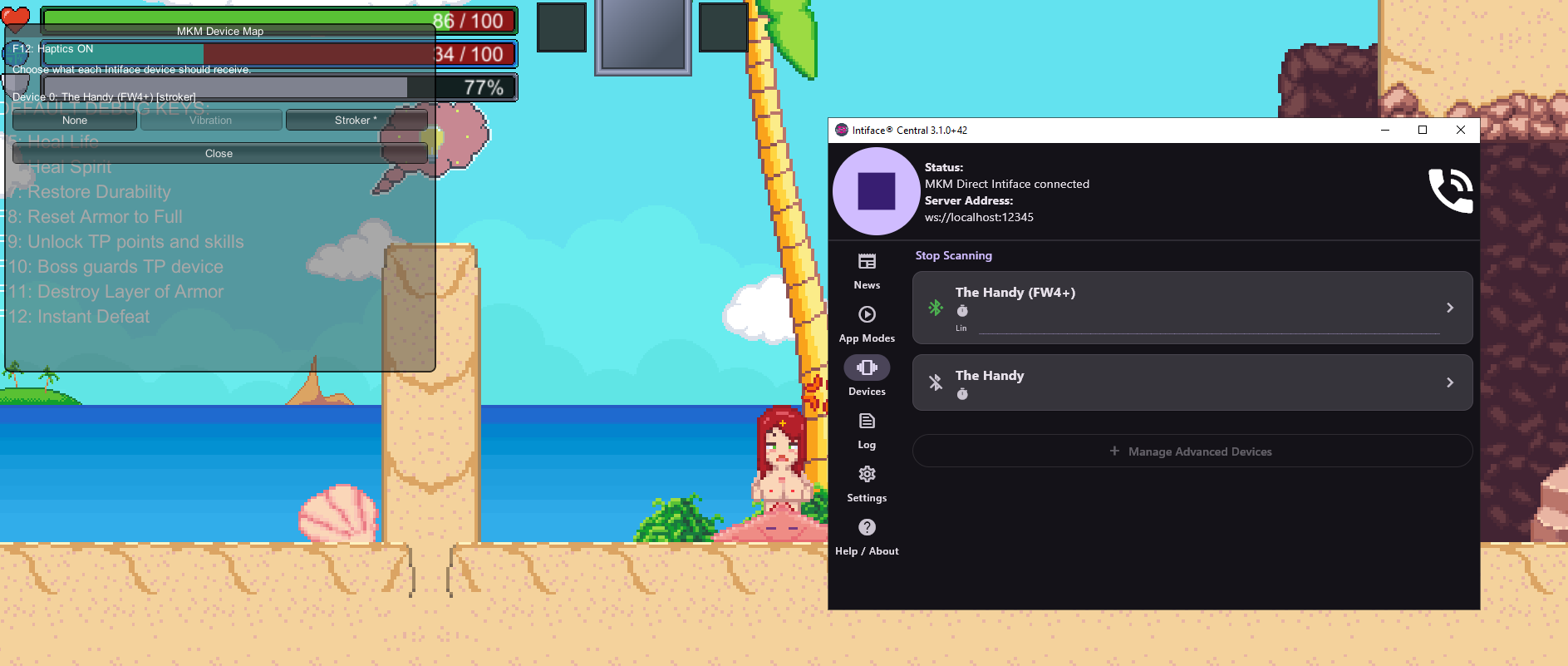
This is a BepInEx 5 Mono plugin that connects directly to Intiface Central and plays synced haptics from in-game animation progress. It uses vibration scripts and linear/stroker scripts, with a small device mapping menu for choosing what each connected device should receive.

Requirements

  • Mystic Knight Maya v0.8.3
  • BepInEx 5 Mono
  • Intiface Central running at ws://localhost:12345

Download
Mod:

v0.1.6.1

  • Added Direct, EDI, and Off buttons to the in-game haptics menu.
  • Disabled the default F12 mode hotkey so it does not conflict with MKM controls.
  • Fixed direct stroker output so Direct.IntensityScale no longer compresses linear/stroker travel.
  • Reworked public linear scripts so active scenes use more meaningful Handy travel.
  • Added Handy/stroker range and orientation config.

Game:

Install

Install BepInEx 5 Mono
Download BepInEx 5 from the official GitHub releases page:

For this game, use the Windows x64 BepInEx 5 Mono zip.
Extract the BepInEx zip into the Mystic Knight Maya game folder, the same folder as:
‘Mystic Knight Maya.exe’

After extracting BepInEx, the game folder should contain files/folders like:

Mystic Knight Maya.exe
BepInEx/
doorstop_config.ini
winhttp.dll

Run the game once, then close it. This lets BepInEx create its folders/config files.

Install the haptics bridge
Download the MKM haptics bridge zip from the mod link above.
Extract the haptics bridge zip directly into the same Mystic Knight Maya game folder.

After installing, you should have:

BepInEx/plugins/MkmHapticsBridge.dll
BepInEx/config/mkm.hapticsbridge.cfg
edi/Gallery/Definitions.csv
edi/Gallery/vibrator/
edi/Gallery/Linear/

Start Intiface
Open Intiface Central and make sure the websocket server is running at:
ws://localhost:12345

Start the game
Launch Mystic Knight Maya.

Controls

  • F12: toggle haptics on/off
  • Ctrl+Shift+F1: device mapping menu

Device Mapping

Each Intiface device can be set to:

  • None
  • Vibration
  • Stroker

Vibration uses the ‘vibrator’ scripts.
Stroker uses the ‘linear’ scripts.

Notes

  • Direct Intiface mode is enabled by default.
  • EDI fallback exists in config but is disabled by default.
  • Tested around MKM v0.8.3.
  • Some scenes may still need tuning.

If you wanna support:
https://ko-fi.com/vibrateblue
10 Likes

always thanks for the game intergration

1 Like

Can’t get it to work, I’ve followed the instructions, tried using Bepinex fresh download from github and others from other game integrations, none of it works, bepinex never opens and using intiface or enabling edi in the config can get any connection with the game.

also kinda confusing install instructions, mostly because of different folder/file structure that other uploads on the site.

Should i be downloading bepinex on my own? I’m a little confused.

Lastly but not least, thanks for integrating this great game, I really appreciate what you do and all the others for this community! Hope you can help sort this out.

1 Like

Oh, it assumed you had bepinex, my apologies. I will update the post.

1 Like

so yeah install BepInEx, run it once to create it’s config files, then install the mod

Alright got it working thanks! Got a little thrown off because i’m used to a console opening when bepinex initializes, maybe that’s only when it’s included in the mod download with specific configs?

After some testing with the handy where only linear is selectable, the motions are extremely jittery, it does move up and down, but vibration like, so the ups and downs are not smooth at all, it’s very aggressive.

1 Like

So, I tested this mostly with an edge 2 and wrote a script to translate it to linear, I am going to re-write that part, and try and test out linear with the simulated options in Initiface and see if I can fix the issue.

Hope it’s possible! Will provide more feedback when possible.

An extra note to the previous message, when my handy is attached to my table, it’s so aggressive that my table and monitors shake ^^

I think it’s fixed:
[old link]

Would be great if there was a filler script here

1 Like

will add it to the to do

2 Likes

Is there a reason that Edi is disabled by default? its usually my prefered method over intiface, so i was just curious to ask why.

I also cant seem to get it to work with Intiface or Edi

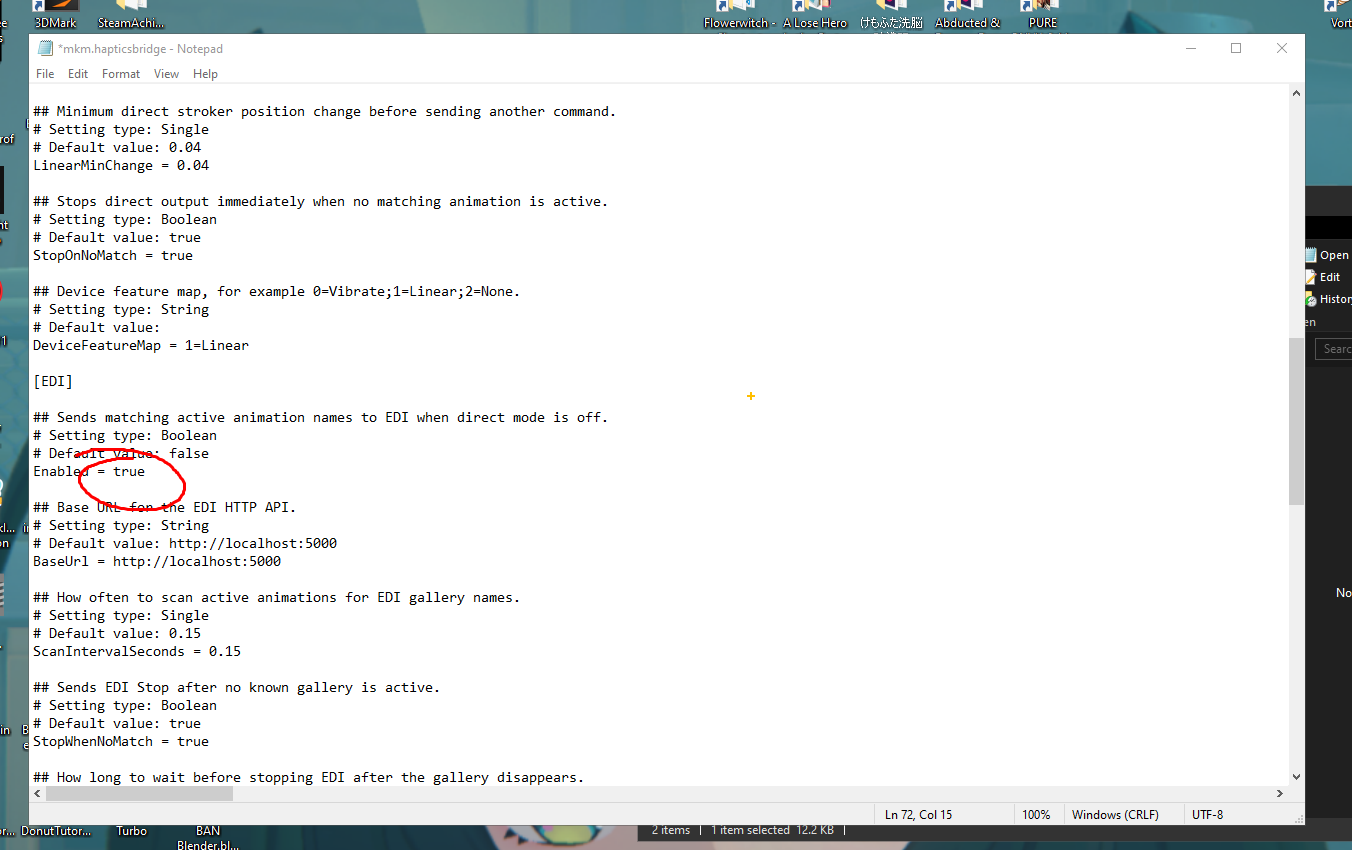
this is all i would need to change for enabling Edi right?

Ive installed quite a few Mods for Edi and Intiface before

the mod menus and such work, but for Edi setup the device isnt shown in game at all

and for the Intiface setup the device is shown in game but nothing happens when an animation is playing

my preference is the edi setup, but im not sure what to do here since neither work

EDI is disabled by default because the direct Intiface path had better timing in my testing, I also have plans to extend what I am doing into a sort of framework, and I was hitting some limitations with fun script, but that’s neither here or there, the real problem is bad UX design I think.

For EDI, changing ‘[EDI] Enabled = true’ is not enough by itself. You also need to turn Direct mode off:

[Direct]
Enabled = false

[EDI]
Enabled = true

Or press F12 in game until it says ‘Haptics OFF’. That turns off the direct Intiface path so the EDI bridge can send Play/Stop commands to EDI.

It should probably say something like Direct Haptics OFF, I am going to create a sort of toggle, so the different modes can be cycled through with F12, thanks for trying/feedback, please let me know if that doesn’t work and I can take a look at the log files next.

Also, the in-game ‘Ctrl+Shift+F1’ device menu is only for Direct Intiface device mapping. EDI should handle devices in EDI itself.

I’ve only tested a few of the scenes, but it seems that for linear (I’m using a Handy) almost all the movement is in the 25-75% movement range, leading to very short strokes.

Any chance of altering the linear scripts to actually use the full motion range?

I mean, when you have a scene where a slime is shoving it’s goo so far down your throat that your stomach is distending, I’d expect the pumping motion on the handy to be using the full range for deep strokes, not just more of the same shallow stokes.

very useful feedback, I am have way undertuned it because of previous feedback, I will have something soon while I work on this

This is a test replacement pack for the Isobora scene only.

Install:

  1. Open your Mystic Knight Maya game folder.
  2. Copy the included edi folder into the game folder.
  3. Allow Windows to replace the existing files when asked.
  4. Start Intiface Central.
  5. Launch the game and press F12 until haptics are ON / Direct mode.
  6. Test the ISO/Isobora scenes.

Expected folder layout after install:
Mystic Knight Maya folder/
edi/
Gallery/
Linear/
ISO-.funscript
vibrator/
ISO-
.funscript

rolled into the main pack

Let me know if these feel better/reach the peaks correctly, if so I know what I am doing now.

1 Like


Yep, even with both of those edi settings done it doesnt seem to work for me

Im usually pretty decent with this stuff so idk why, also the fact that it doesnt work in intiface OR edi for me makes me think i did something wrong. but the fact that the mod actually shows up in game makes me think that i didnt.
So im just kind of unsure.

If you have downloaded the new version from the post, it’s a toggle now F12 cycles through Direct, Edi and Off, try deleting your config and replacing it with the new one, otherwise happy to look through your logs

They are here:
\BepInEx\LogOutput.log

Much better than the original scripts.

Great, I will do a run over the scripts and make the improvements, thanks for your feedback.

1 Like