Yes it also works with Handy, especially for the all the stroke animation. If I don’t get any flag, I won’t do anything to the link
Make sure it is the [Steam v27-12-2023] link if you know what I’m talking about
I don’t know how to make the templates match automatically.
I put CubiLink version 2.6.3 into the plugin folder, ran the game to generate the files, and then placed the two JSON files into the CubiLink folder.
After that, I confirmed that I could load the templates and that they were working, but I don’t know how to trigger the automatic template syncing.
I need an explanation regarding the contents of the included zip file.
Thank you for your support. To enable automatic template switching, you need to use the CubiLink Auto-Load Suite in addition to the base CubiLink plugin. Please ensure you have downloaded CubiLink_AutoLoad_Suite_v1.2.zip on Patreon and follow these steps:
=== CubiLink Auto-Load Suite v1.2.0 ===
This package contains the CubiLink Scene Auto-Load plugin and the Mapping Editor.
— INSTALLATION —
Copy ‘CubiLinkSceneAutoLoad.dll’ into your game’s 'BepInEx\plugins' folder.
Launch the game once to generate the configuration folders.
— USING THE EDITOR —
Run ‘CubiLink_Mapping_Editor.exe’.
Click ‘Browse’ and select your ‘BepInEx\config\CubiLink’ folder.
Use the tabs to manage your mappings:
Slide Mappings: For automatic switching based on game animations/slides.
Scene Mappings: For switching based on internal Unity scene names.
Motion Mappings: For switching based on Live2D motion clip names.
Click ‘SAVE ALL CHANGES’ when finished.
— SLIDE ID MAPPING (New in v1.2) —
The plugin now supports prefix matching. If you map ‘SiraberuMae/kensamae_taiki’, it will automatically match any slide starting with that name (like ‘_4_1’, ‘_3_1’, etc.), so you don’t have to map every single variation.
I would appreciate it if you could share your Mapping.json file.
Since I am not very familiar with these things, I tried following the instructions, but the templates are not switching automatically. I suspect I might have done something wrong.
My SlideMappings.json is currently configured as follows:
“FeraMae/Hitarea_feramae_mseiki_kuti1L1”: “2 Blow Job Front”
I have configured the Slide Mappings in the Auto-Load Editor as shown below, but they are not working. For some reason, only the configurations in the Scene Mappings tab are functioning correctly.
I’ve confirmed that the Scene Mappings trigger the template change successfully, but the Slide Mappings do not trigger anything even when the corresponding Slide IDs appear in the log.
Have you also selected the path to the game when using the editor.exe? The downloaded version has my path which is gonna be different to your computer’s path.
I’ve been using it and noticed that while it works perfectly in the English version, it doesn’t seem to trigger in the Korean localization.
I was curious why, so I did some digging with Gemini (AI) to compare the logs. It turns out the Korean version outputs a slightly different string and spacing:
English: Load Successful:[Slide ID]
Korean: 불러오기 성공 :[Slide ID] (Note the space before the colon!)
Because of this subtle difference, it seems the plugin might be missing the trigger. I (and the AI) thought it would be amazing if you could add support for this Korean format!
[Possible adjustment]
Checking for the string: “불러오기 성공 :”
Setting the index to 9 for this case would perfectly catch the Slide ID.
I know this might not be 100% accurate since I relied on AI for some of the technical analysis, but the log difference is definitely there! If you could add this small fix, it would be a huge help for the Korean community.
Thanks for the awesome plugin, and hope this suggestion helps!
Thank you very much for developing this plugin!
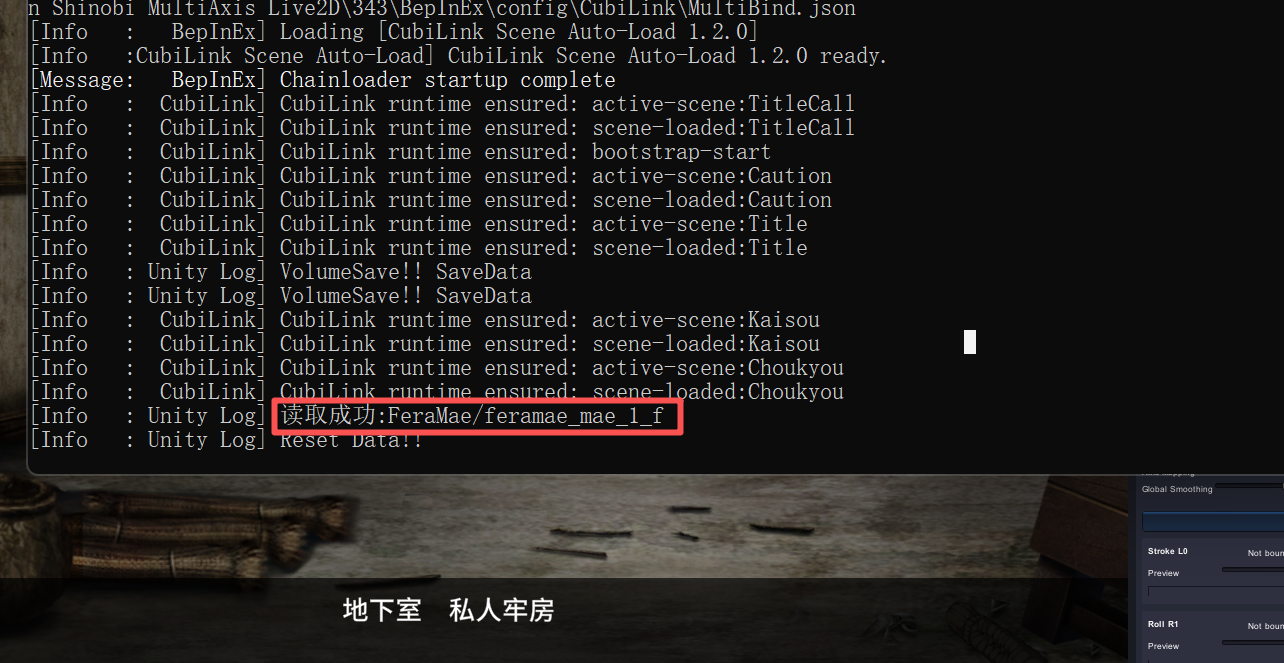
However, as yuruha described, the same problem also exists in Chinese. So, if possible, it would be advisable to have different “Load Successful” strings corresponding to different language regions (in Chinese, the corresponding characters are “读取成功:”).
Finally, I would like to say that although there is this minor flaw, the scripts and plugins you developed run extremely well and realistically on osr6. Thank you very much for your development!
I have updated the Auto Loading plugin for multilingual versions.
-“Load Successful”, “불러오기 성공”, and “读取成功” are now the default trigger
-For other languages, users can go to the “Add Trigger” tap to add or edit custom triggers.
I don’t own other language versions, please let me know if this works out.