General
This is an extension for OFS 3 (work in progress) to provide some tools to expedite the process of generating more precise music based funscripts.
What it does (Summary)
Helps finding the exact speed (BPM) and offset and align all the actions precisely to the music.
- Select actions of a song or sequence of interest and register the beats.
- Place the first and last registered action precisely to the music. The tool scales and translates all actions in between.
- Select a long as possible sequence of uniform beat patterns and calculate a BPM and offset.
- Define the first and last action’s positions in their bar/measure. Calculate a corrected BPM and offset.
- Align the actions perfectly to the music.
Additionally there are some (experimental, random but mostly useful) helper functions to
- Detect slow actions/pauses and add actions such that there is a true pause observing a minimum speed for movements.
- Manually insert actions with mirrored slope to the previous or next action’s Pos.
- Find zero speed sections and delete the closing action (reverse point 6)
- Select Minima/Maxima between Pos and Slopes.
- Multiply selected actions around a weight.
- “Blinky” which helps me find the correct video frame for action scripting without having to do the back-and-forth with my fingers.
- Calculate some Base Stats
- Convert from Easy2Hard Mode and vice versa.
Background
I’ve been playing around with available tools to generate funscripts especially around formats with music (PMV, Cock Hero). From the classic filtering in Audacity and use of FunscriptGenerator, over FunscriptDancer to ScriptPlayer.VideoSync or tapping to the rhythm in OFS, I’ve encountered some common challenges in all of them: Timing. This can directly throw one off when actions are off inconsistently or indirectly increase work when trying to slope beats and use patterns which can get erratic. To manually correct for it there’s a lot of Copy&Paste, iterations, frame-by-frame (beat-by-beat) corrections, calculations and the “Equalize” function in OFS… which this tool eliminates.
Since I wanted to have a look at lua anyway (have to say though, not the biggest fan) I took this opportunity to write an extension for OFS. It is still a work in progress, but I’d rather share with others on this forum and hope to maybe make life easier for some and incorporate more from your feedback along the way. The fact, that there are so many global variables kinda irks me. I might wanna do a GUI init at some point to make them local to the GUI function itself.
I want to thank @Kingleon99 for allowing me to reuse some of his code. I kept it to a minimum but took inspiration from his GUI style.
How to use
Description of pages
General

At the top of each page are the page navigations. It is possible to use the dropdown list, select the previous/next page or directly jump to a page. There are also keybinds to jump to/toggle pages.
There are buttons to quickly jump to the first and last registered actions, as well as make all registered actions selected.
On the first four pages, it is possible to define details about the first and last actions of the selection. I.e. on what beat in the bar those actions lie. It will be important for step 4, so it can be done until then. Tip: If you can’t hear it clearly you can also just leave the first beat to be the first of the bar and with a BPM approximation (page 3) only define the last one visually with the Tempo mode of OFS. The calculated offset would be off by the error, but the BPM is calculated correctly.
Page 1 - Register Beats

- Select the beats of a song.
- Click Register Beats of Interest (Action 1) (key-bindable)
Page 2 - Precise Placement
After the beats are selected and registered (Page 1), the first and last action should be placed precisely to the music. I usually slow down to 0.25x speed and use FPS Override for higher resolution. Be aware that your audio setup can introduce delays. Make sure you use the same audio hardware for the whole video and also what part of the beat you script to (onset, main hit, swell…). This way the player can add a constant offset to correct for that. Also be aware that where there are separate audible beat cues (e.g. Cock Heroes), they can be a bit off. I usually stick to the music itself. Also note that the graphical waveforms in OFS can be misleading.
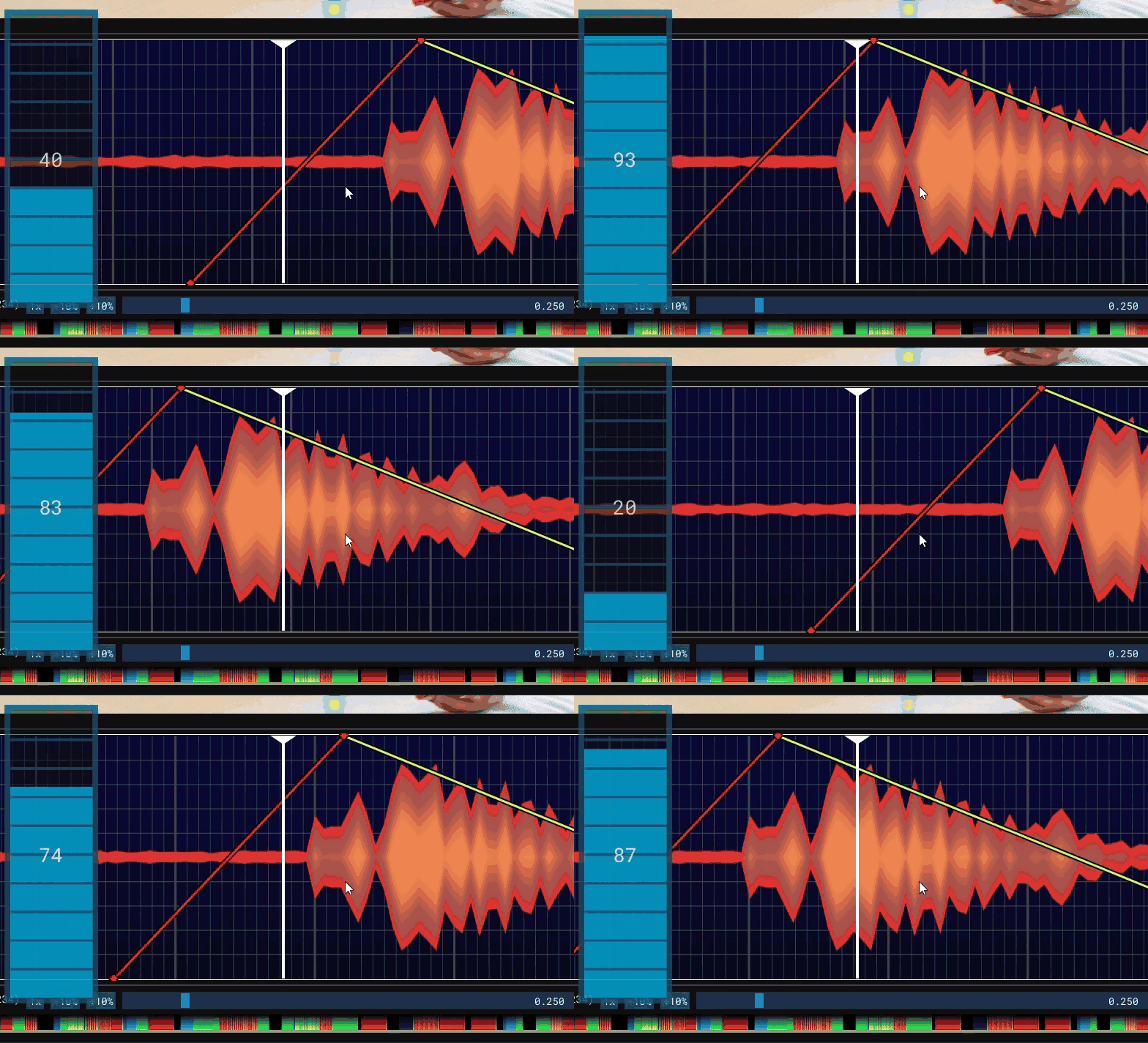

- Place the first and last registered actions precisely to the music.
Jumping to the last/first actions and making the registered actions selected are key-bind-able helper-functions for quicker workflow. - Click Register Precise Start & End (Action 2) (key-bindable). All actions in between will be moved and stretched according to the placement of the first and last ones. WARNING: This Step acts on all scripts loaded in OFS! This makes editing Multi-Axis scripts easier.
Page 3 - BPM Estimation
In order to estimate the BPM look for a uniform pattern to select. The more notes you can select, the better the accuracy. Enter the number of beats per bar for your pattern, i.e. 4 for a normal 4/4th beat, 8 for double time 6 for a fast 3-3 etc. and click Calculate BPM for an estimation of the BPM. Additionally an offset for the first registered note (Step 1) and the parameters under “First Selection” is calculated. Both values can be copy-and-pasted into OFS’ tempo mode parameters. Unfortunately I couldn’t find a way to do that automatically and I doubt that the extension has any access to it.
There’s also the possibility to only calculate an offset to a given BPM value. This comes in handy if you have multiple songs/rhythms in one video or the music is edited in a way that shifts the beat a bit.
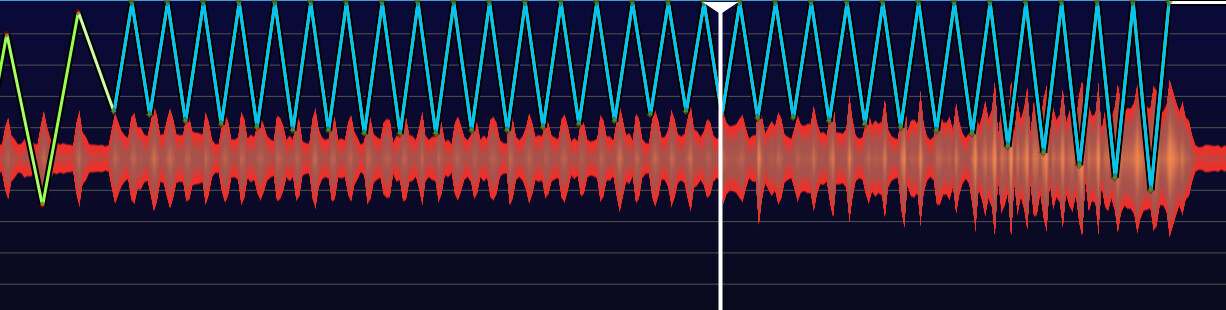
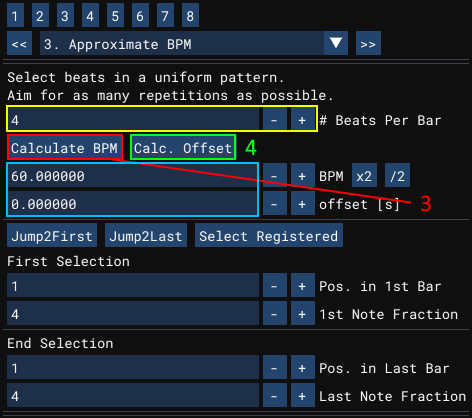
- Find and Select as many beats as possible of a uniform pattern.
- Enter the number of beats per bar.
- Click Calculate BPM (Action 3) (key-bindable) to get a BPM and Offset estimation or Calc. Offset (Action 4) (key-bindable) to calculate an offset for a given BPM for the first action (key-bindable).
Page 4 - BPM Correction
For this step it is important to have characterized the first and last registered action (see step 1), which were accurately placed (see step 2) correctly.Tip: If you aren’t sure you define your first action as the first in a bar and set OFS to show “whole measures” in it’s Tempo view mode. Then scroll through to the end and see where in the last bar the last note lies. Some interpretation might be necessary if there is a significant drift.
By clicking Adjust BPM (Action 5) the tool calculates the BPM corrected for the number of bars that can be placed in between the first and last registered actions and takes the solution that is nearest to the calculated BPM in Step 3 (or one you type in). Of course there are multiple solutions, so you can toggle solutions with faster >> or << slower. You can copy the new BPM and offset values into OFS’ tempo mode.
Tip: You can check how well it is done, by showing “whole measures” and scrolling through. If done correctly, you’ll notice that a) the actions are “dancing” around a static point (or if they are precise already, they are exactly at it) and b) there is no drift of the waveforms with respect to the whole measures. If while scrolling forward (right arrow key) there is a drift where it looks like the waveforms move to the left, then your BPM is too low. Try a faster one with faster>>. Conversely if the waveforms appear to drift to the right, try a slower one by clicking <<slower. If you can’t find one that fits, that probably means, that you’ve defined the notes under "First Selection"and/or “End Selection” wrongfully. If the drift is only miniscule, there could be a small imprecision in placement of the first and last action → return to step 2.
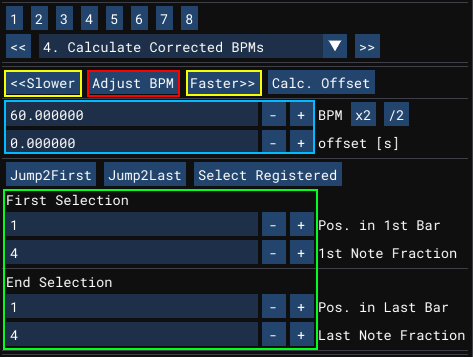
- Define the First/Last Selection parameters.
- Click Adjust BPM (Action 5) (key-bindable)
- Copy&Paste BPM and Offset into OFS’ tempo mode and check results.
- If necessary try a faster or slower solution (key-bindable) and if that fails check your parameters and precision placement.
Page 5 - Place Actions precisely to beat
If the BPM and offset values are set correctly, it is now possible to make the timing of every action perfect and align them to the grid. On page five, enter the [color=#00BBFF]note fraction (denominator)[/color] you want to align your actions to. (4 means a 1/4 note, 8 a 1/8 note, 16 for 1/16 etc.). What value is best, depends on your actions. Generally, the bigger the error of your actions is, the smaller the number, i.e. the longer the notes need to get. It could therefore make sense to select parts of the song and align the beats with different settings separately.By Clicking Move (Action 6) all selected actions will be aligned to the beat as defined by BPM, offset and the note fraction. If there are conflicts, because you try to place two actions at one place, it will show a list of timestamps and scroll to the first conflict, that you can resolve. You can also toggle conflicts with <<Previous Conflict and Next Concflict>>. Or undo and try with a shorter note (bigger number for note fraction)

- Select Sequence of Beats to be aligned.
- Define the note by its fraction. Try to take the longest possible note.
- Click Move (Action 6) to align the beats (key-bindable)
Page 6 - Pauses and Sloping
Automatic Sloping
By now you’ll have a script, where all the actions are perfectly timed. (If you want to limit the speed and introduce other patterns, do the following step after). But between songs or just more generally while there are no actions for a while, there are these slow movements in between that should be actually brought to speed zero. With that players such as MFP can add filler depending on your settings or there will be an actual break that doesn’t cause problems for any devices.
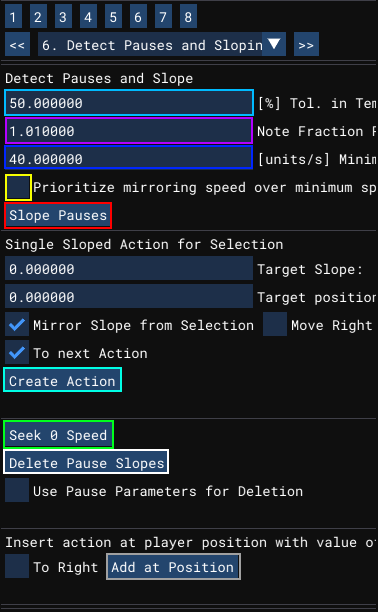
In the first part, there’s the possibility to add those automatically depending on a few parameters:
- The Tolerance in tempo change defines by how much the slope has to change for it to be considered an end to a pause. The standard is set to 50%
- The note fraction defines the minimum length of an action to be considered a pause. This is to prevent changes in patterns to be regarded as pauses. The standard is set to 1.01 which is a whole measure with 1% tolerance for rounding error reasons. This implies that the BPM parameter (Pages 3 or 4) is used.
- The minimum slope is set to avoid too slow actions. If a Pause is detected, the action is set such that its slope does not go below this value.
- Prioritizing mirroring speed over minimum speed sets the action such that its slope is mirrored at the next action, i.e. instead of following the minimum speed, it starts off with the same speed as the following beat. This is usually the better option to meet the energy of the continuing beat.
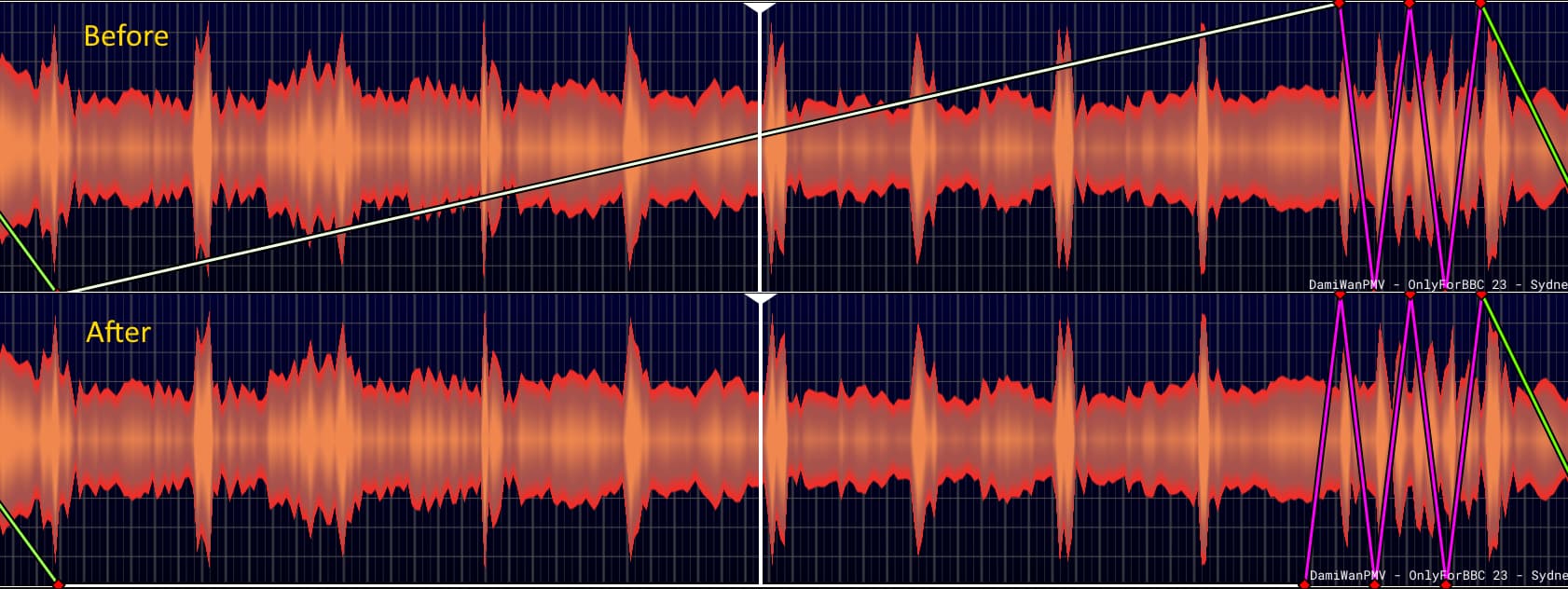
- Select action sequence (or the whole song).
- Choose your parameters.
- Click Slope Pauses. (key-bindable)
- Use Seek 0 Speed (key-bindable) to check on the results. If necessary make adjustments or undo and try with different parameters.
Manual Sloping
It’s also possible to select an action to slope from it in order to generate the pause. You can either use a target slope and position, or use an existing slope to mirror from and sloping to the Pos of the previous (or next) action. The standard settings allow for selection of actions, and then using the slope at the end of that selection to mirror it from the left of the selection to the Pos of the previous action, thereby creating a zero slope.
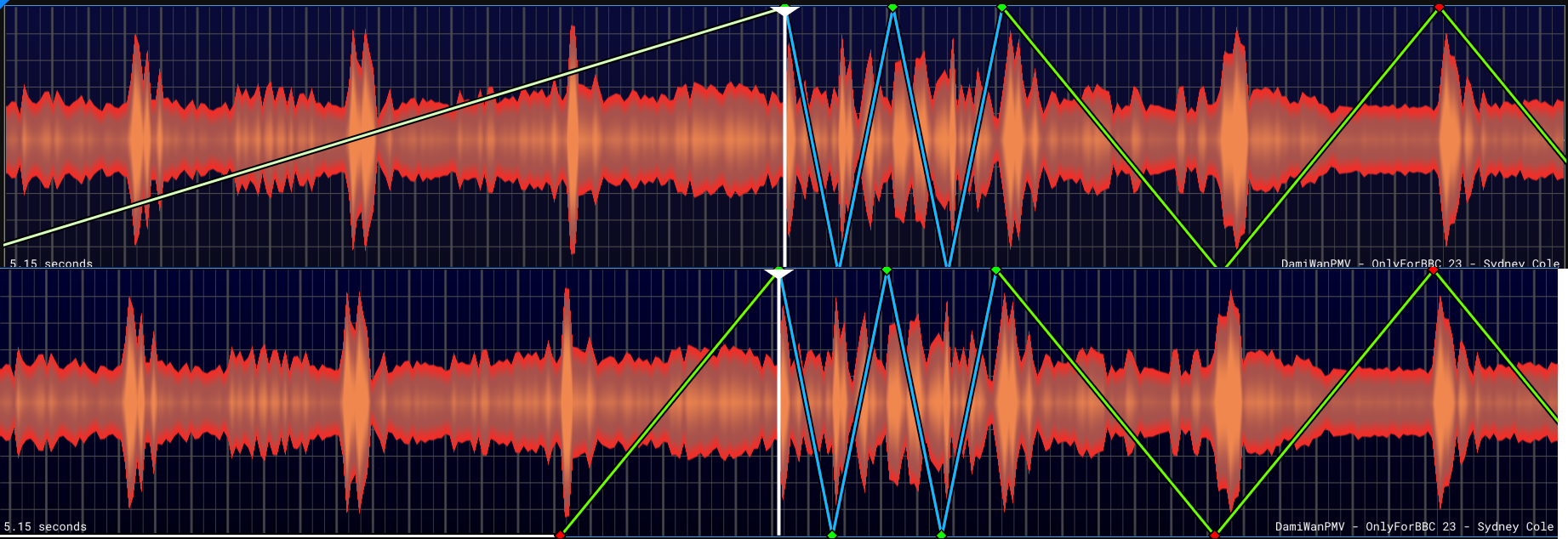
- Select Action(s)
- Choose appropriate parameters.
- Click Create Action (key-bindable)
Delete Pauses
Delete Pause Slopes reverses the actions introduced by the aforementioned steps. (key-bindable) In order to avoid deletions of short stand-stills, check Use Pause Parameters for Deletion.
Add Action at player position
If you want to add an action at the current player position with the Pos value of the preceding or succeeding action, you can do that by clicking “Add at Position”. (key-bindable) Check To the right beforehand if you want the Pos to be taken from the next action instead of the one before.
Page 7 - Extrema Selection
Select Extrema
This part is still very wonky. You can select and register actions and then choose which ones you want to have selected. It’s possible to choose Maxima or Minima as well as the position range they are in. Additionally by checking Adjacent actions between two extrema are also selected. This is helpful if for example in a 3-3 pattern, you only want to select the upper or lower 3.
- Select action sequence of interest.
- Click Register Selection (key-bindable)
- Set the Options to suit whatever you are trying to select. This process can be repeated multiple times.
- After you are finished, it is good practice to Release Selection (key-bindable) so you don’t edit something later on without noticing.
Select between slopes
- Select action sequence of interest.
- Type the slope limits of the actions you want to select.
- You can check Include Pos. to include the absolute position too.
- Click Select (key-bindable)
Page 8 - Random/Experimental
Multiply
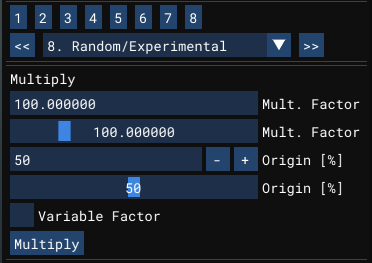
- Select action sequence of interest
- Set the multiplication factor to suit your intent.
- Set the Origin to chose the relative point (weight) you want the multiplication to happen around. If you choose 0%, then the bottom points stay where they are. If you choose 100% then the upper points stay where they are. If you choose 50% then bottom and top points move the same amount.
- Click Multiply (Action) (key-bindable)
Blinky
This is a little experiment for action scripting and helps finding the right frame without tiring the fingers too much by going back and forth. That’s all it does. If activated (key-bindable) it goes forward and backward by a frame. Use CounterLimit to change the time between switching back and forth. This will vary depending on the performance of your computer.
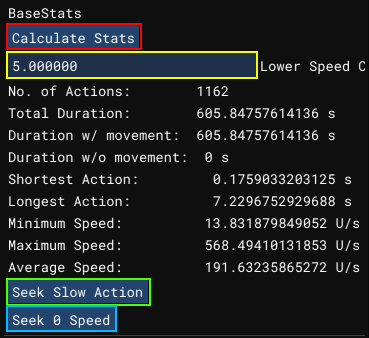
Base Stats
Just some basic statistics. Use the Lower Speed Cutoff to specify under which speed the script is considered without movement (Standard: 5 u/s). The parameter is also used to Seek Slow Action (Action) which looks for actions under the speed cutoff and not standing still. Seek 0 Speed (Action) (key-bindable) on the other hand will search for standstills.
Easy to Hard Conversion
For conversion from easy mode (only up or down per beat) to hard mode (up and down per beat). Be aware: If there are middle points, the results aren’t good and you’ll have to correct manually. The parameters are:
- Skew: Makes it possible that the top points are not placed in the middle of two bottom points, but skewed. 50% is in the middle, lower skews towards the first point (faster upward motion), higher skews towards the second point (faster downward motion).
- Reuse Top Value/Top Points: The value for the top points can either be given, or reused from the easy mode script.
- Reuse Bottom Value/Top Points: The value for the bottom points can either be given, or reused from the easy mode script.
- Max. Slope: If you want to limit the slope of your actions, change this value (Standard 600 u/s). If there is an action that is faster than that, the tool first tries to move the top point timing (skewing) so that movement is maximized. If this is not possible, it then starts to also reduce its position to meet the slope limit.
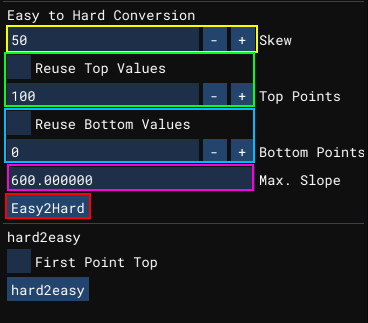
- Select the beat sequence of interest (if none are selected, the whole script will be processed)
- Choose your parameters.
- Click Easy2Hard (Action) (key-bindable).
Here’s an example of selecting some easy-mode values, re-using their values and using a skew factor of 70%:
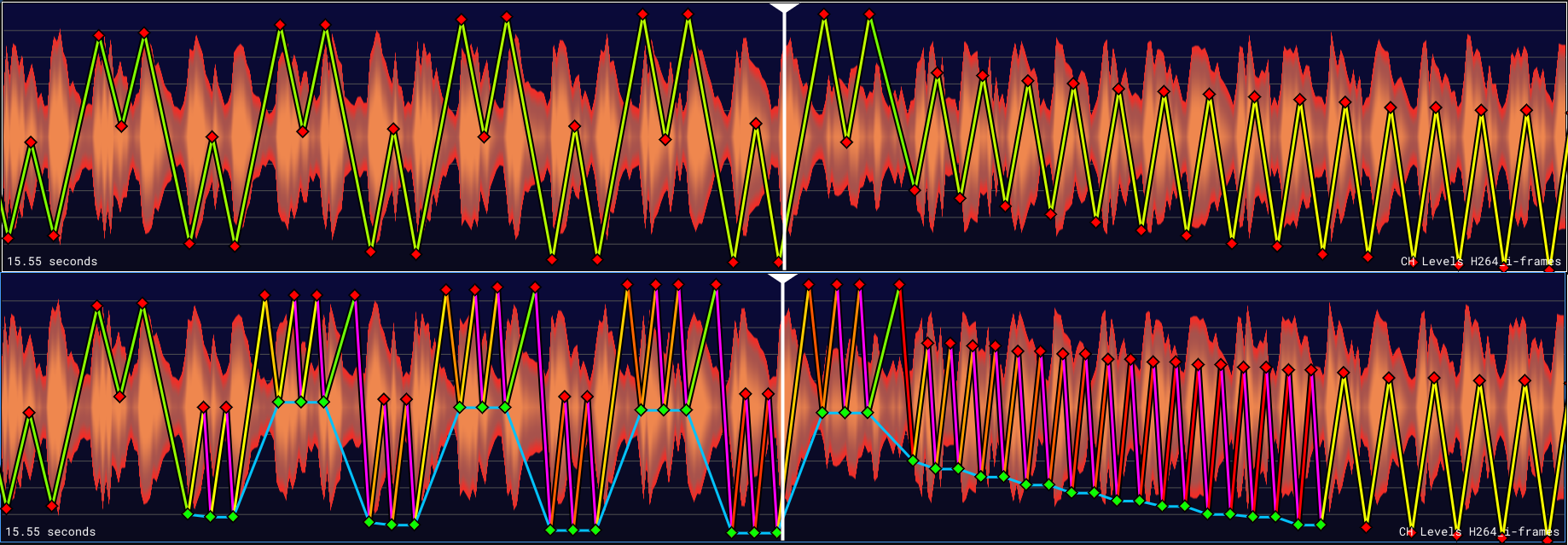
Hard to Easy Conversion
For the other way round. You can check the box if you want the first action to be a top point or deselect it for it to remain a bottom point.
There are also many tooltips to explain things (by hovering over them). Make use of the keybinds for efficient use.
Installation
In OFS3’s extension directory, create a Folder named “BPM Tools” and copy the file “main.lua” into it. The simplest way to reach it is to open OFS and go to “Extensions → Extension Directory”. After that you can enable it in OFS by going to “Extensions → BPM Tools → Enabled” and after that you can select “Extensions → BPM Tools → Show Window”.


File and Change Logs
The newest version can be found here.
Revisions
0.20.0 - 13.09.2025
- original Timestamps will be copied after rounding to measure. This is to avoid a reversal of the rounding after using the scaling on page 2.
- Added separate function to change the top points in hard-mode scripts (page 8).
- Added button to find a middle point on page 8 and its corresponding functions
- moveBeats() now iterates on every index between the first and last selection, to avoid unresolvable conflicts, that could crash the extension.
- in easy2hard() moved the shortening of the indices array in its definition, instead of in the loop later on.
- Corrected the calculation of the threshold in changeTopPoints
- Corrected getIndicesBetweenTimes() to include a error of 0.01s
- Added identifier to page dropdown menu to avoid crashes with some lua interpreters (Thanks @uhntiss)
0.19.1 - 22.07.2025
- First ES release.Pipeline / Ideas
- Make global variables local to GUI()
- Add Pattern Injector
- Add Vibrate with Frequency input
- Add function to add over tracks
Call for Feedback
I release this as a work in progress so maybe some people might find this useful.
Have you encountered an error or unexpected behaviour? Please add a comment with a detailed error description (what were you doing, screenshot of error message). I’ll do my best to rectify the issue as early as possible.
Are you missing or have an idea for a function? Please don’t hesitate to make suggestions.

 . But shelved it after trying to filter sharply enough for it to be accurate, failed for my standards and needed this tool anyway. (±10ms of error I still take as not meeting my specifications and it was usually way more than that). There’s also the problem of multiple layers being in the same frequency band, so I’d either get a lot of false positives or miss beats.